
This effect uses the the Liquify Filter on Photoshop/Photopea
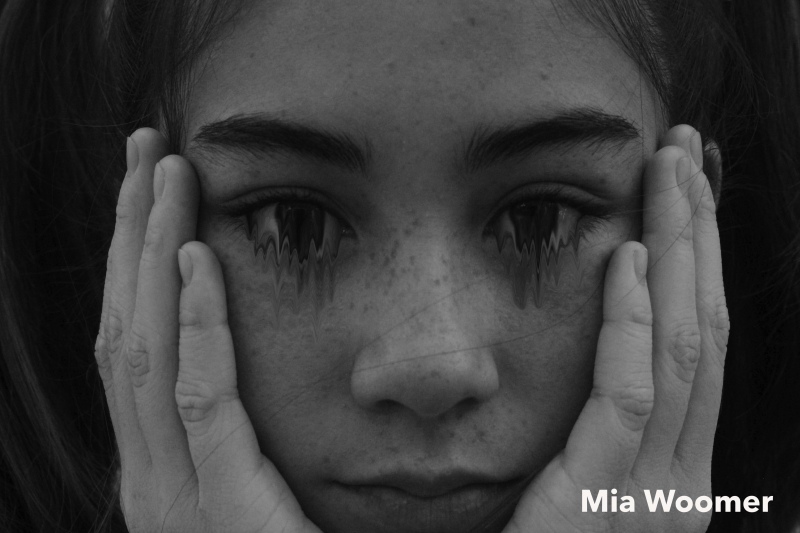

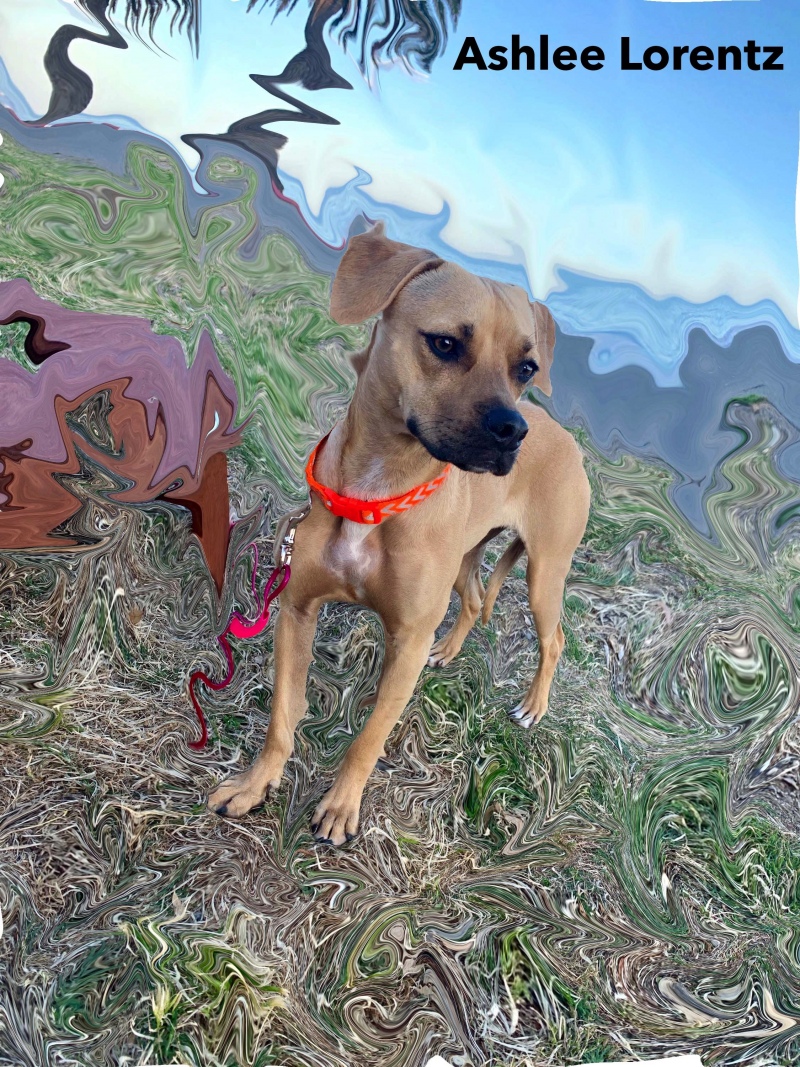
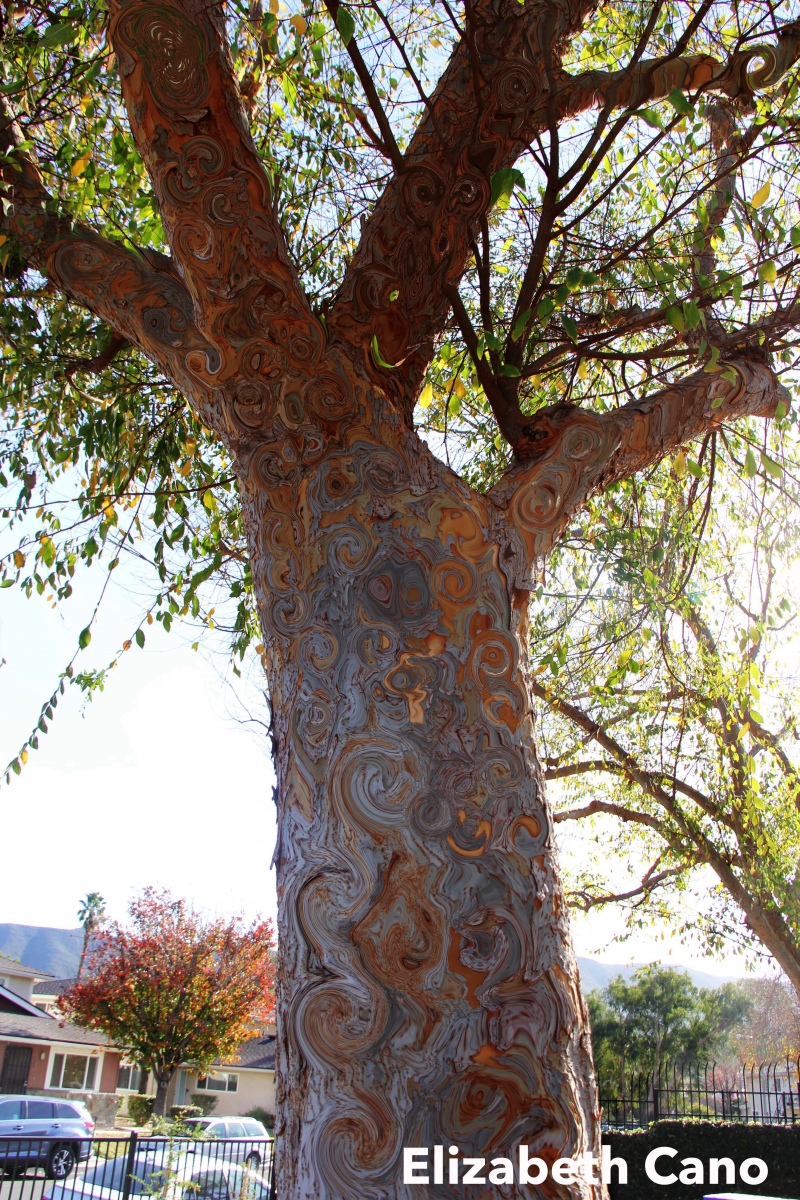
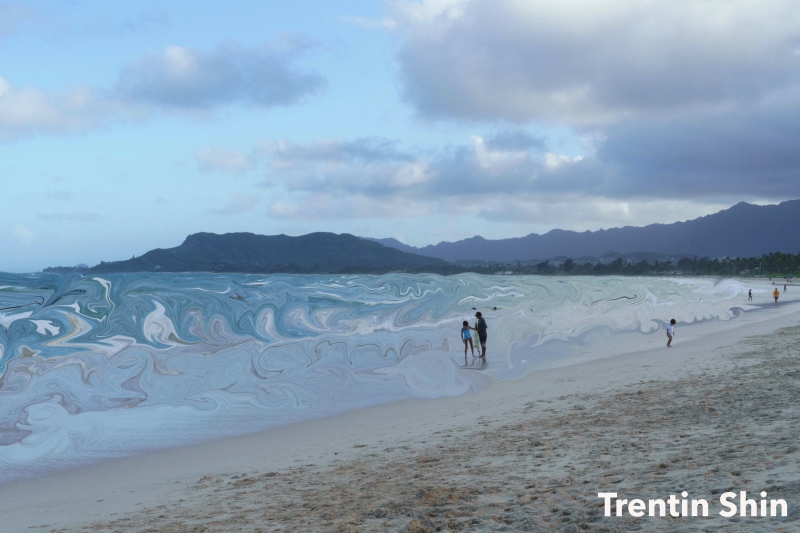
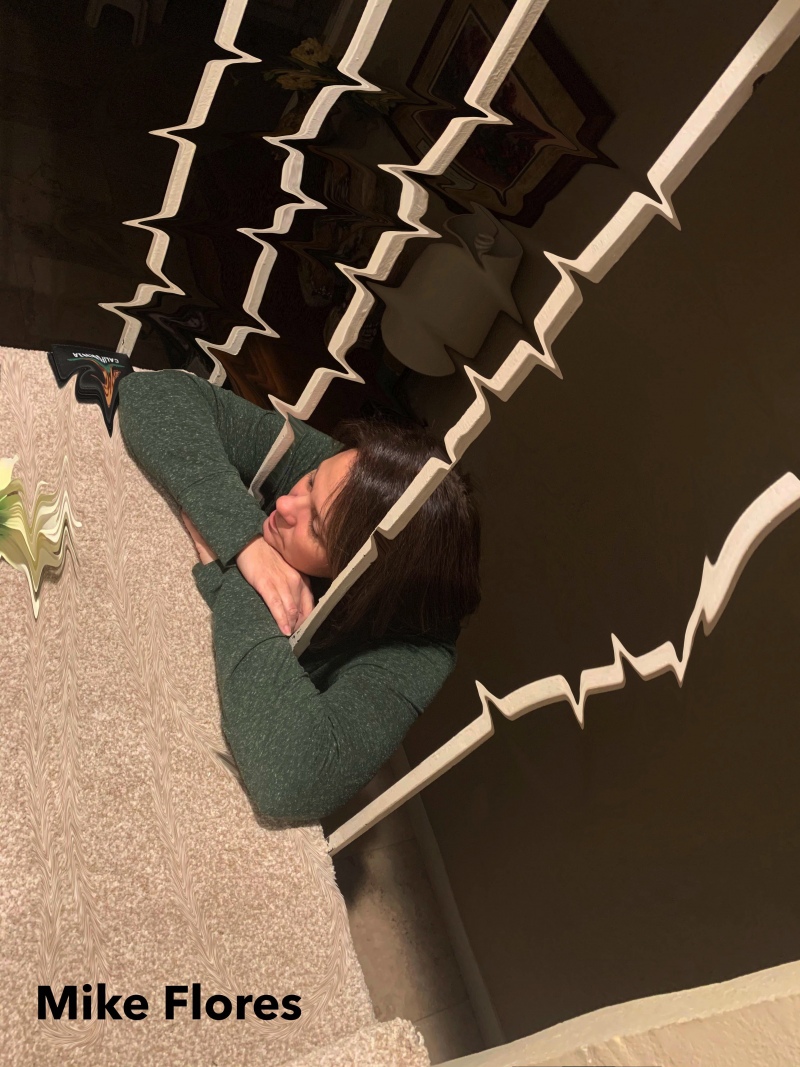
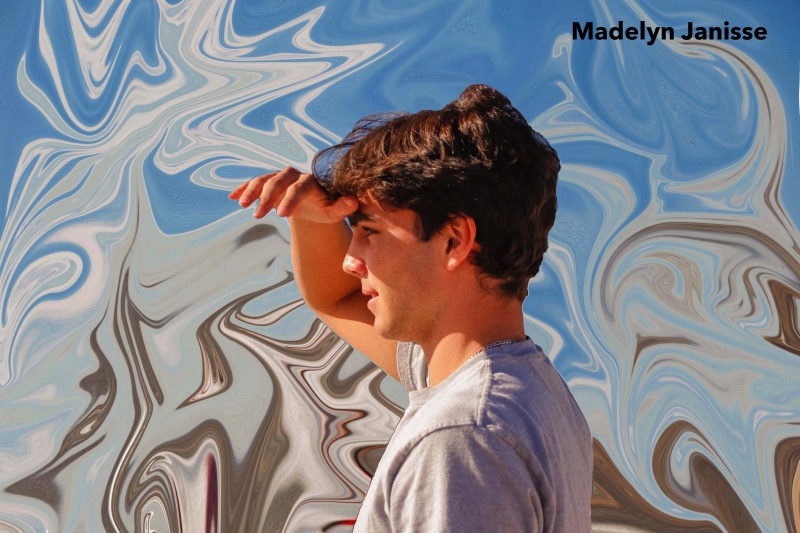

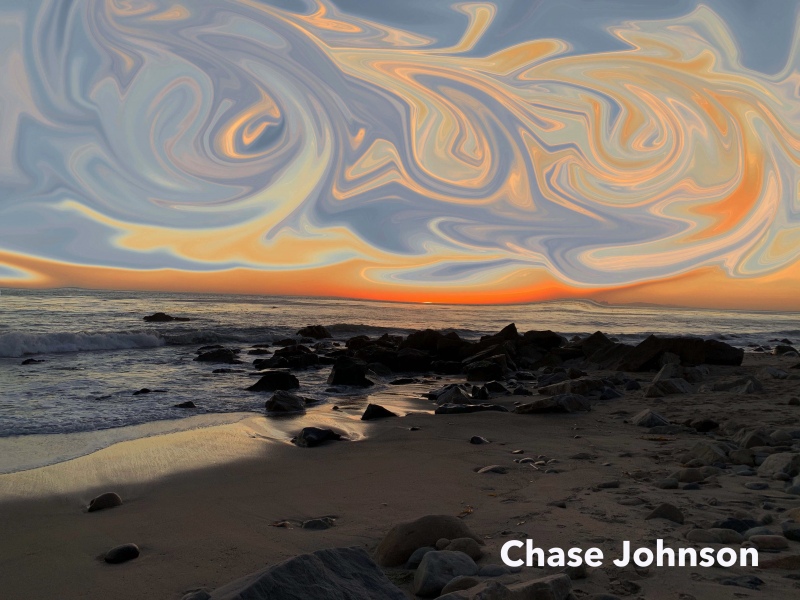
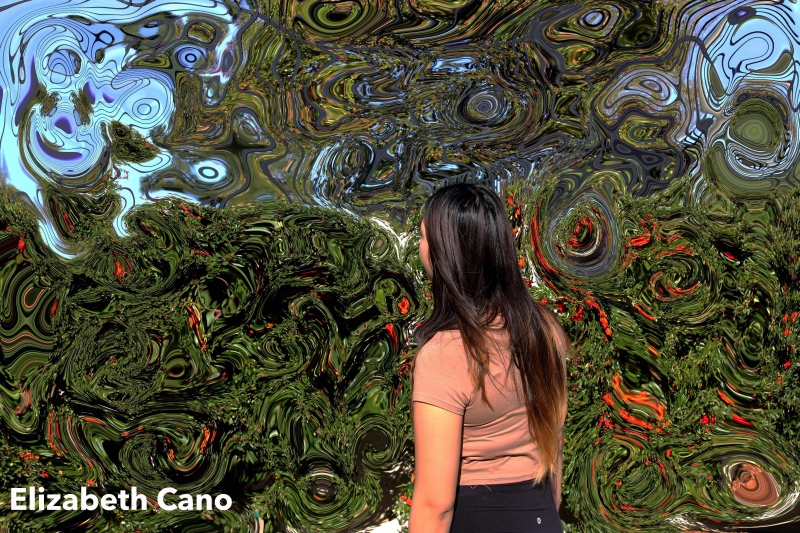
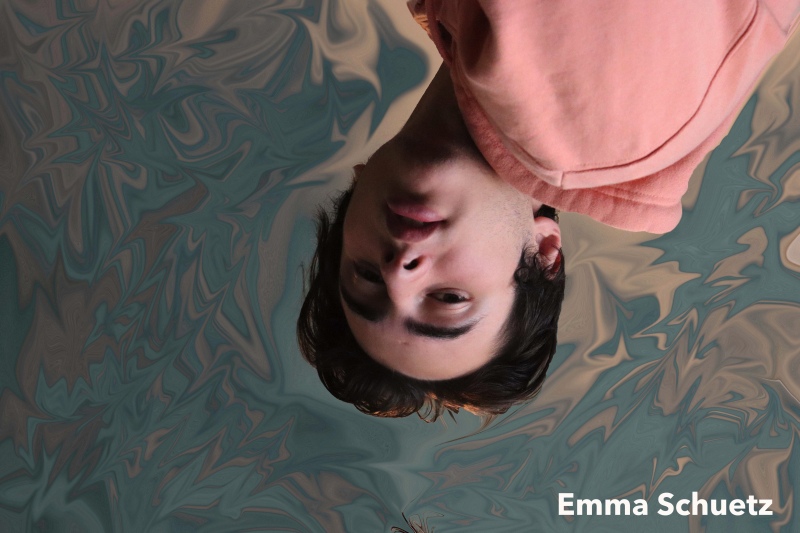
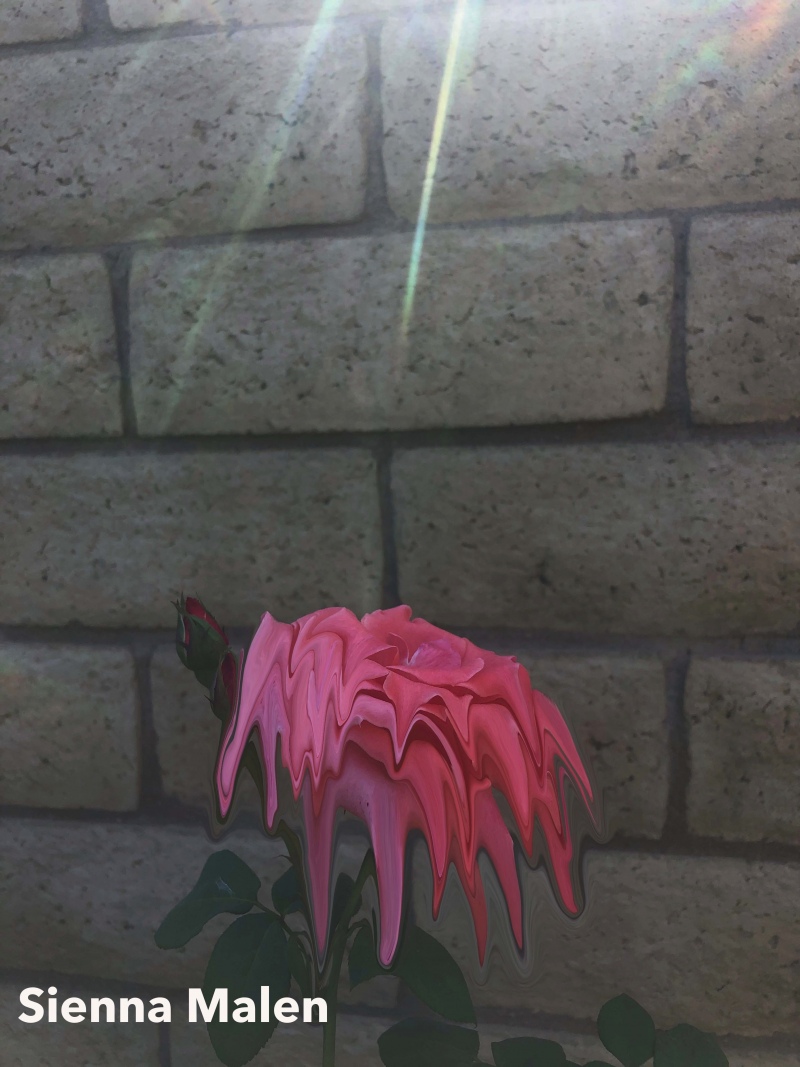
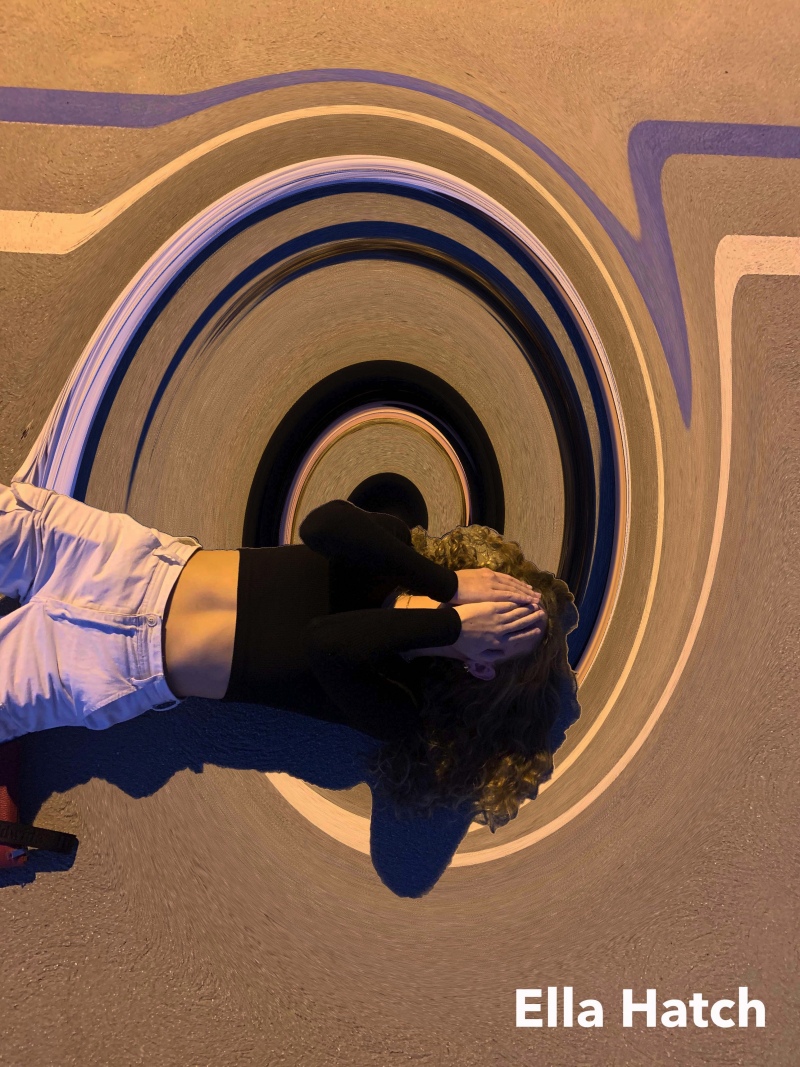
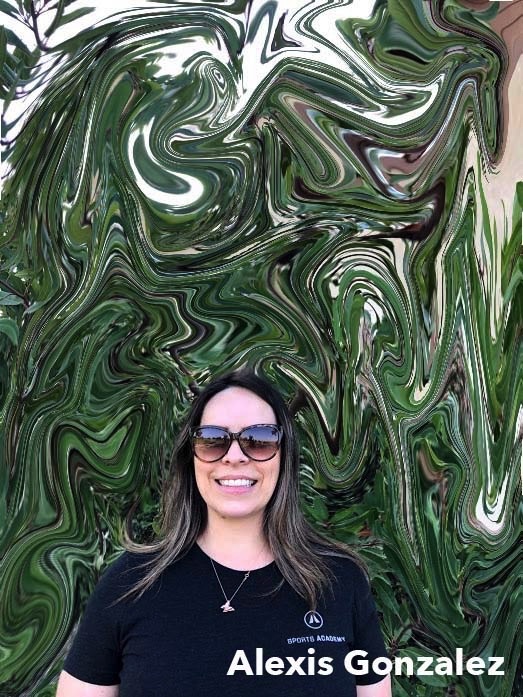
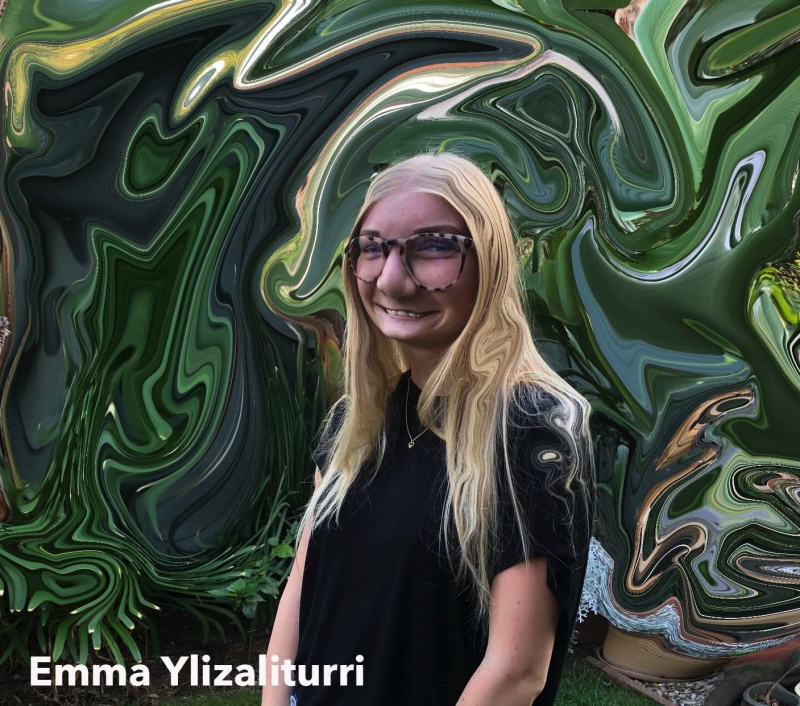

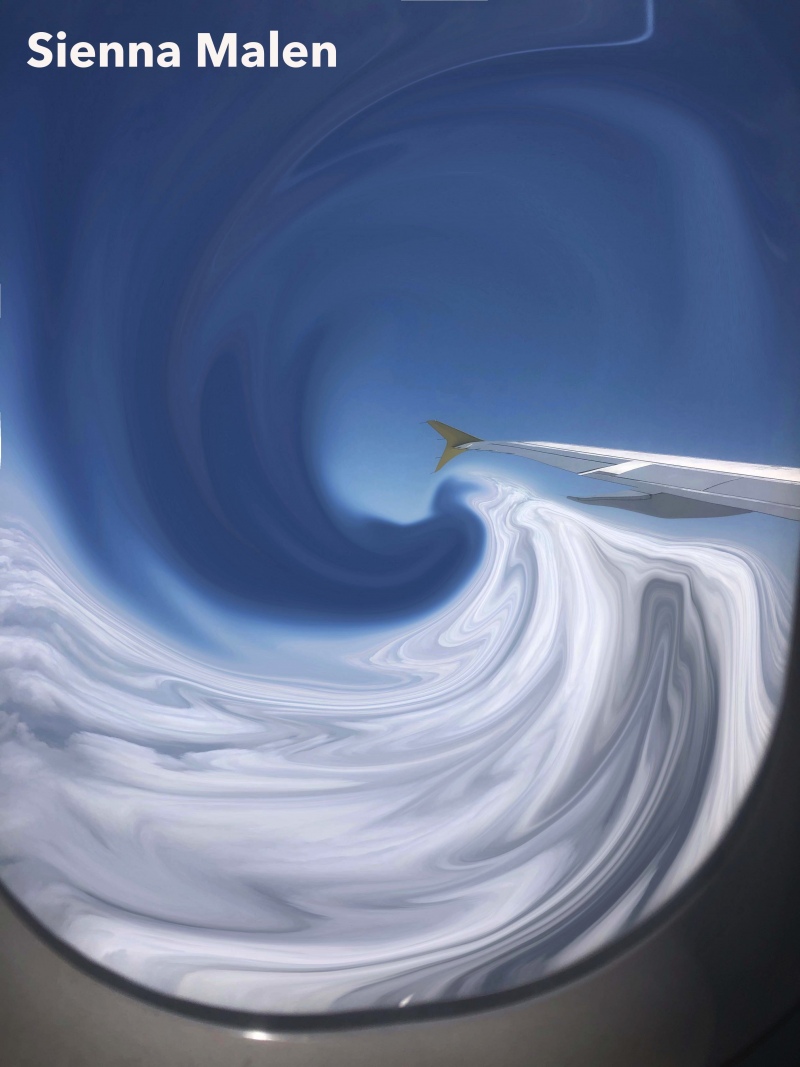
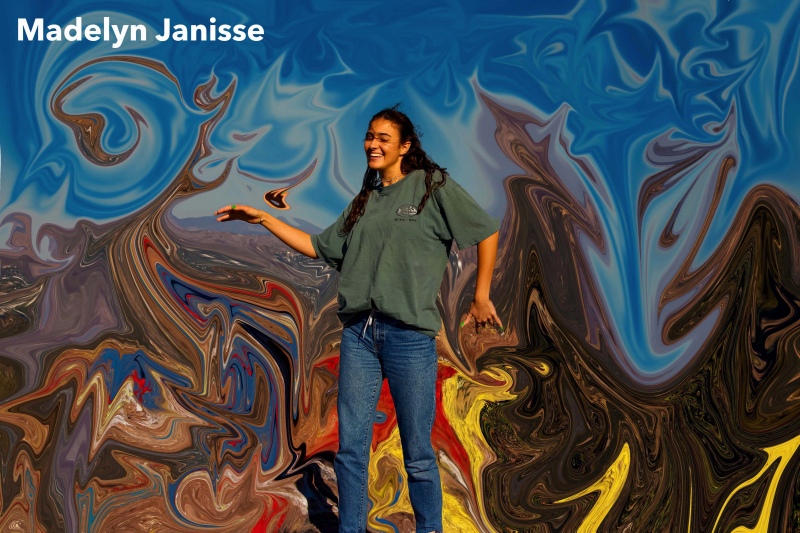
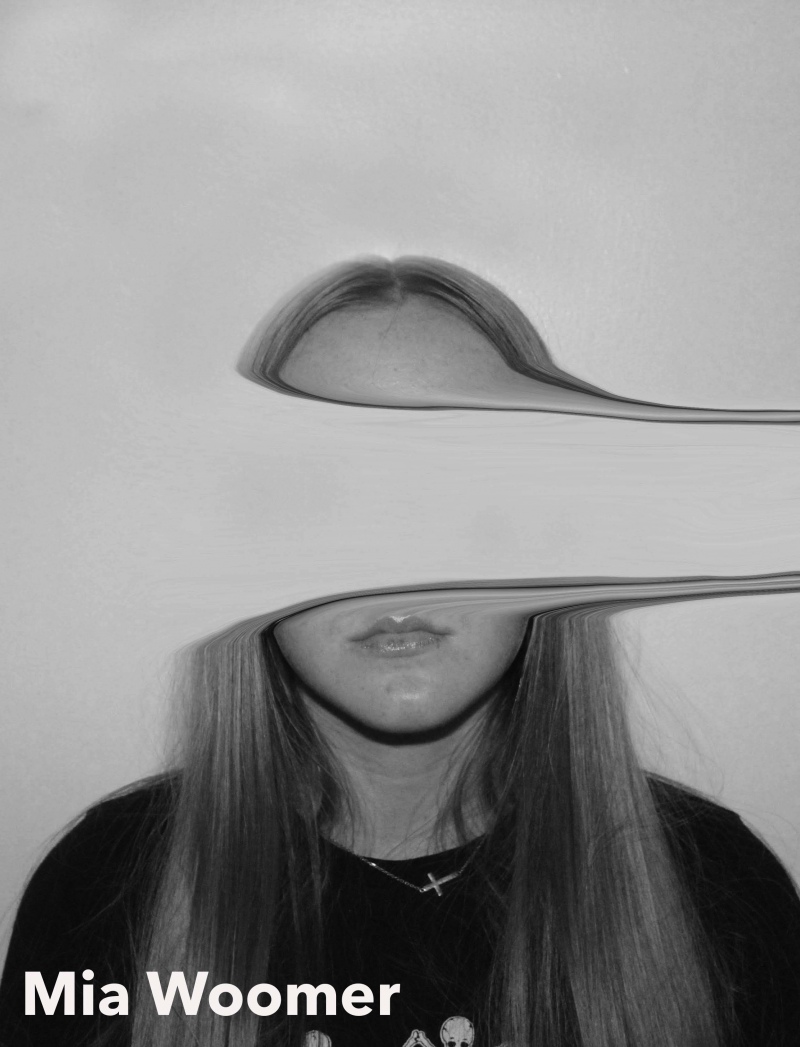
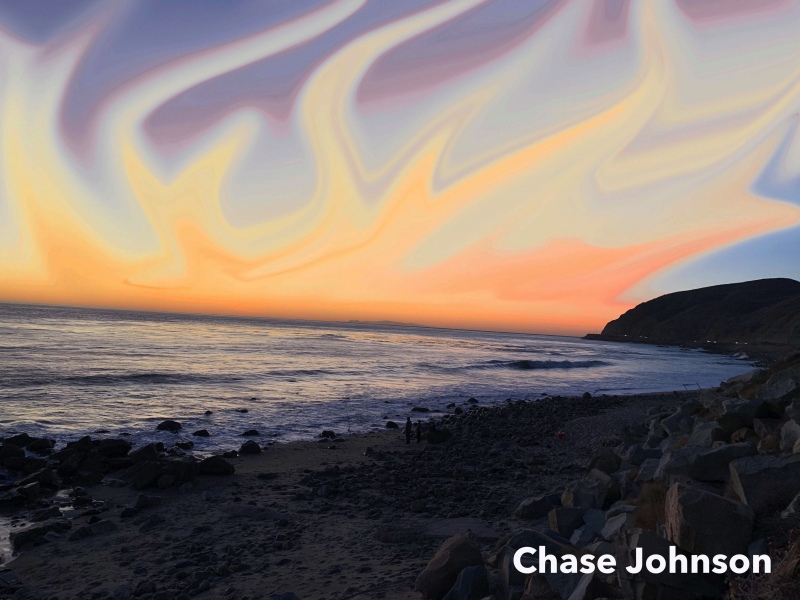
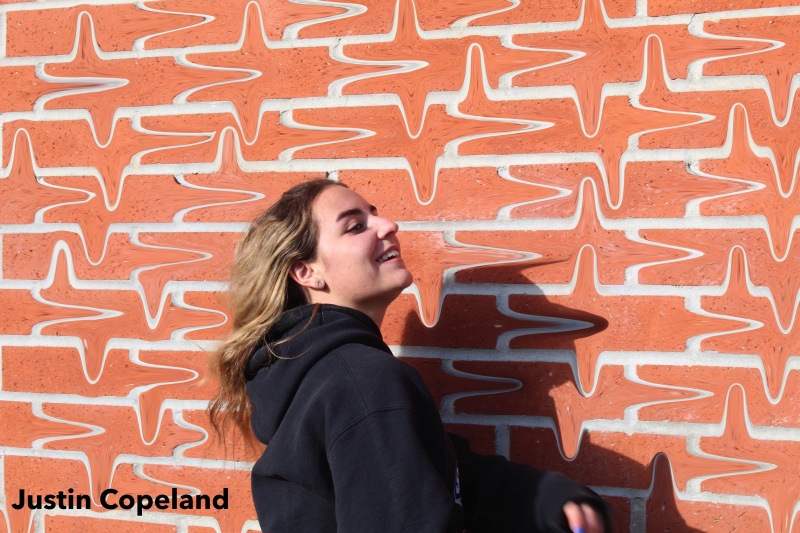
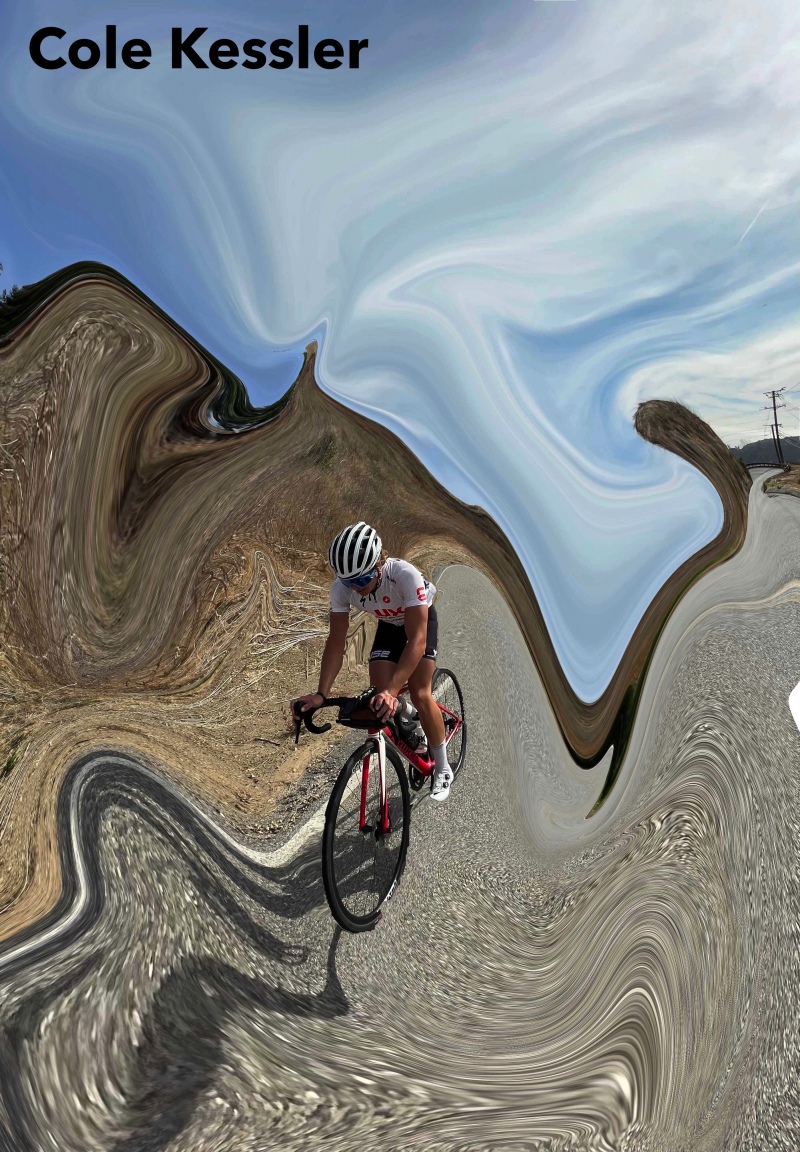
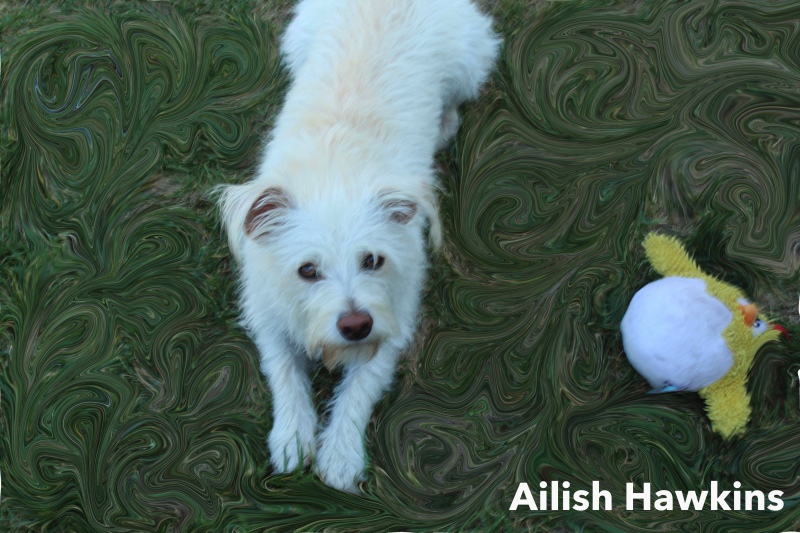
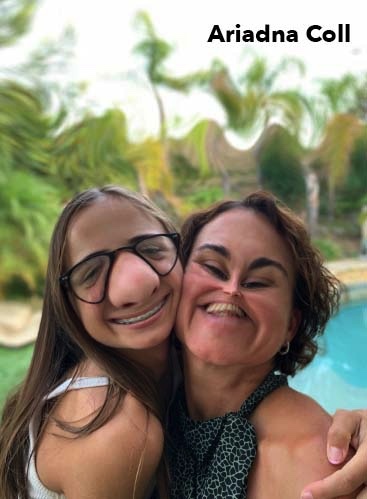

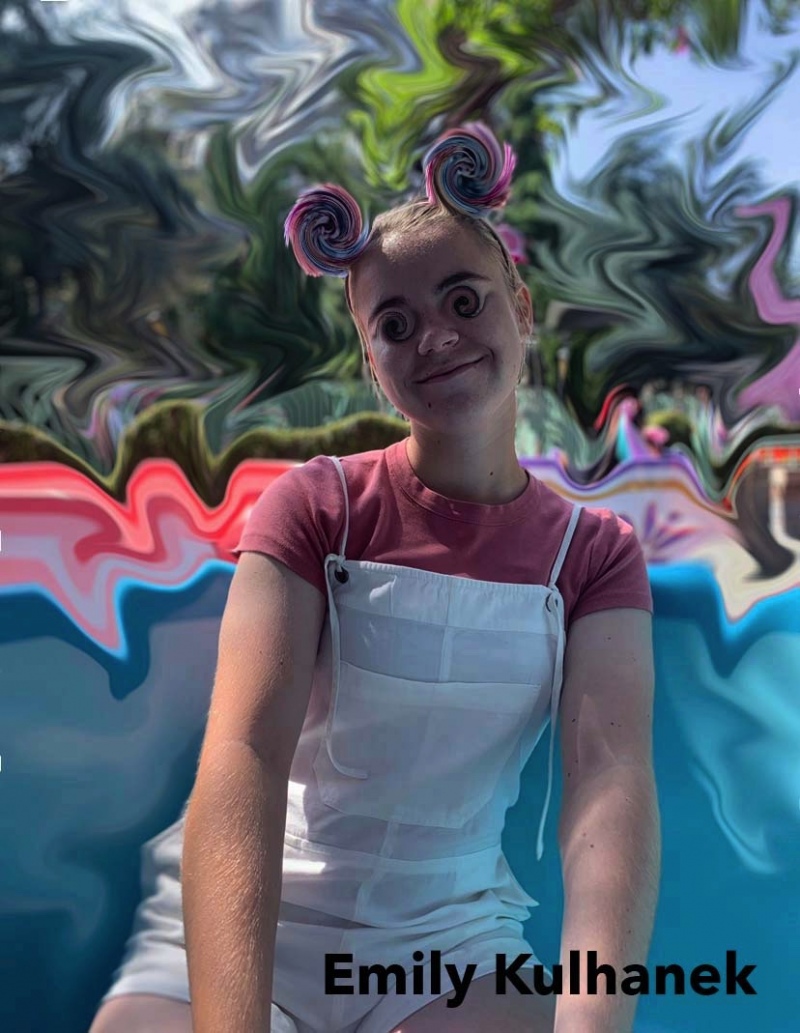
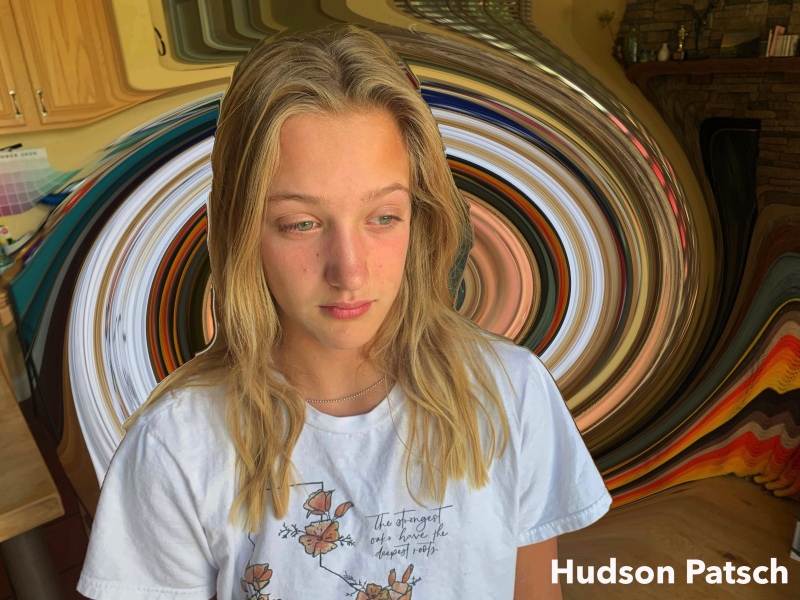

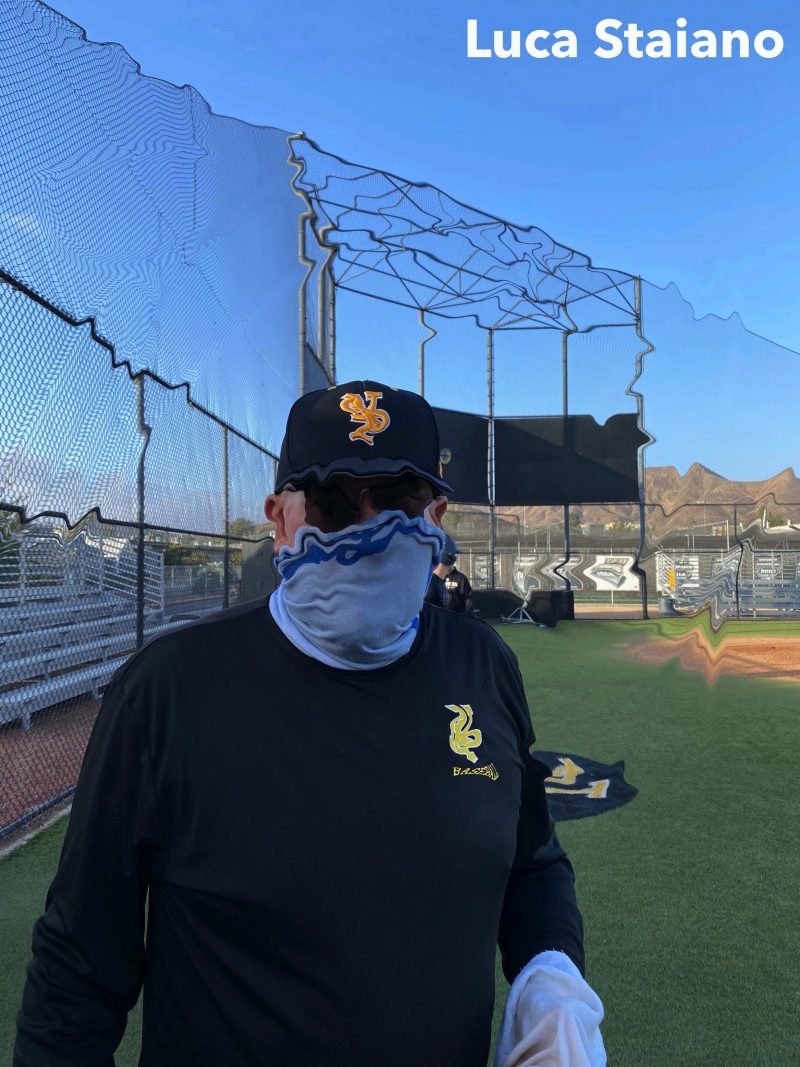
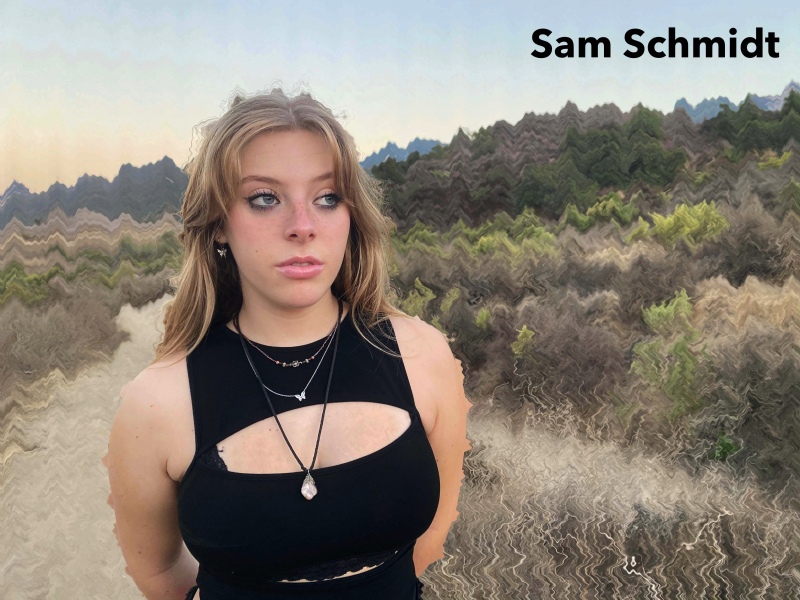
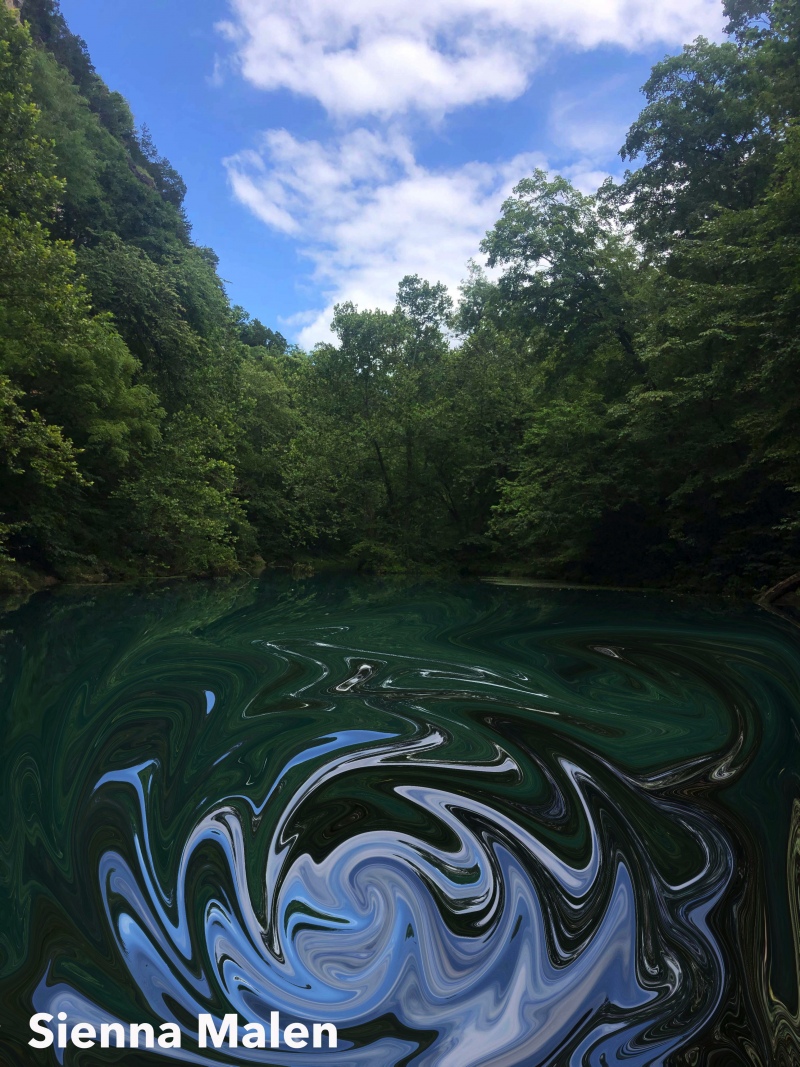
Thumbnail image gallery at bottom of page
______________________________________________________________________________
There two ways to do this.
Screen shots required with your image open in Photoshop or Photopea with layers showing.
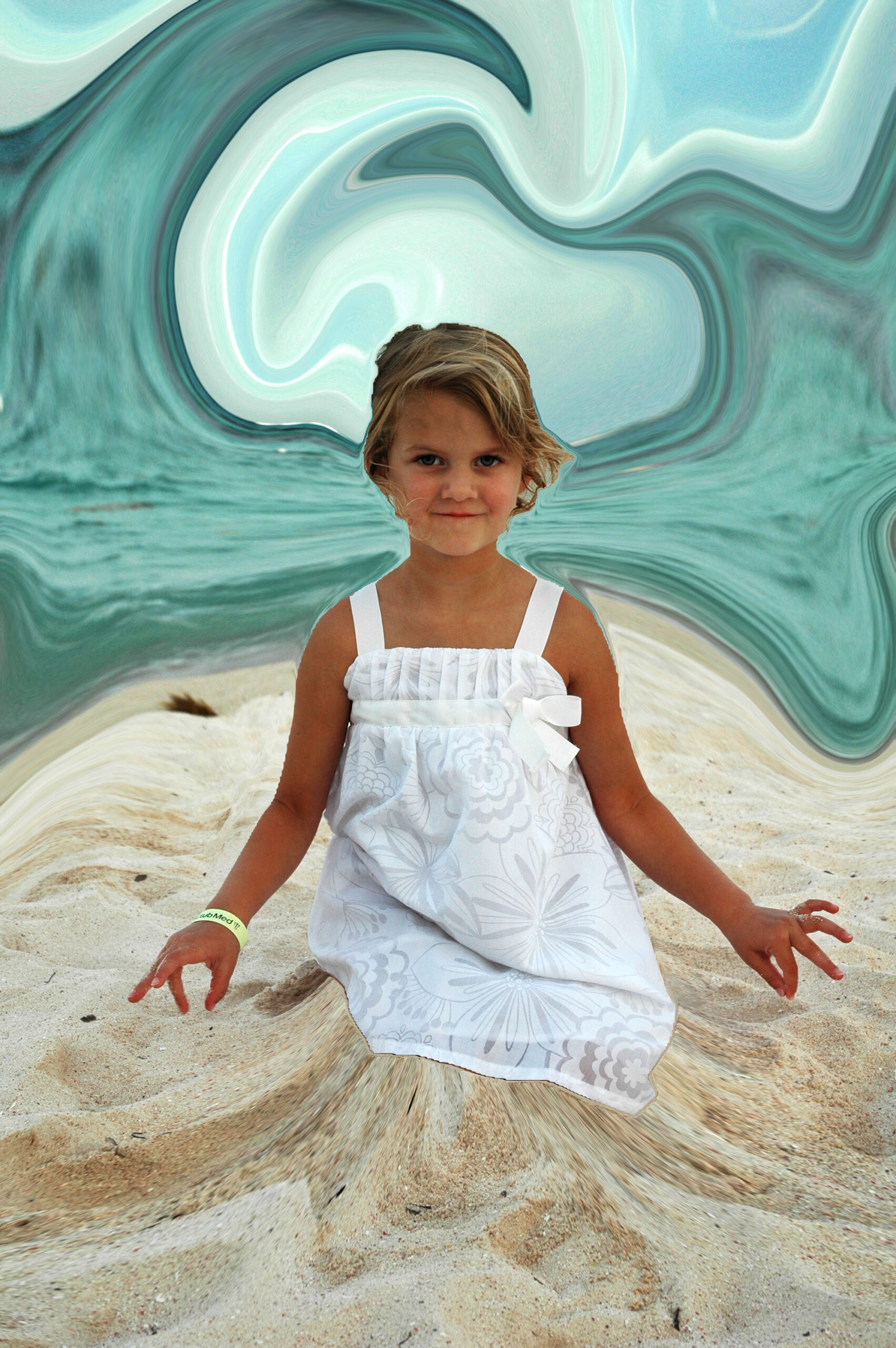
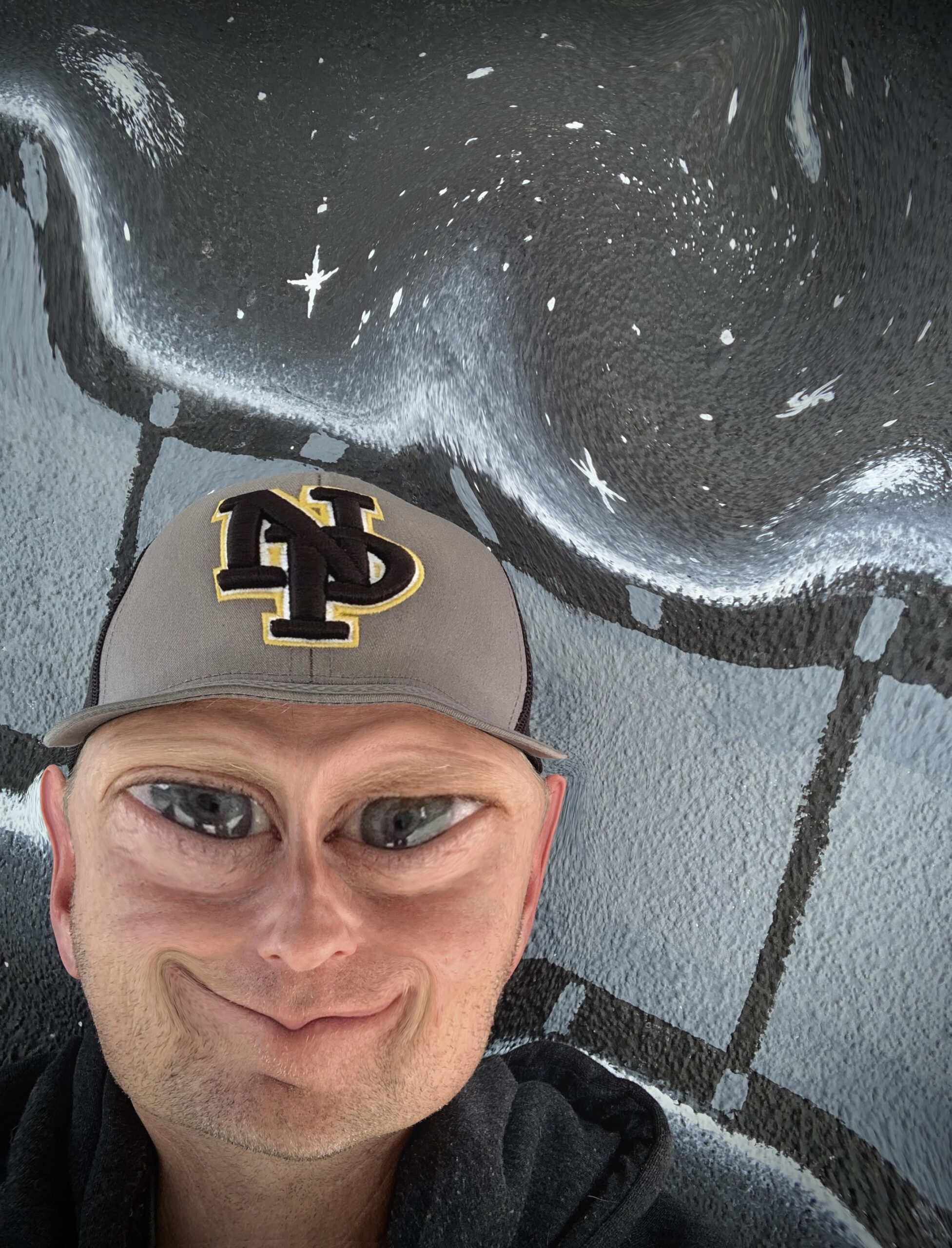
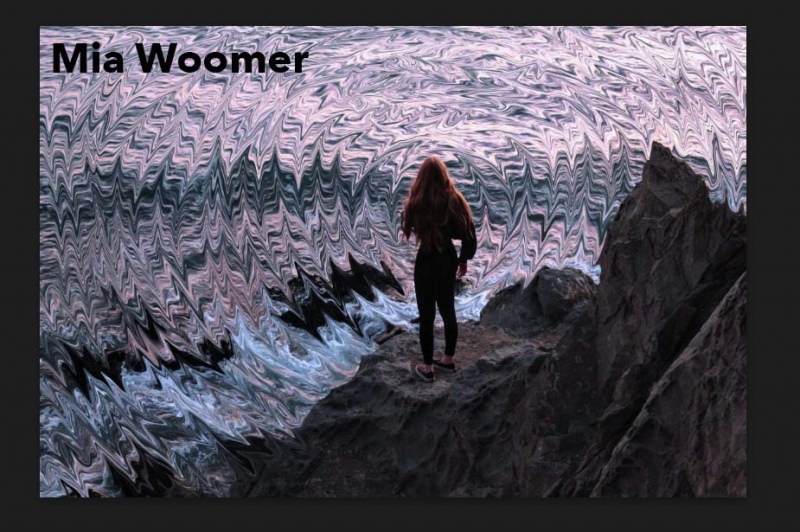
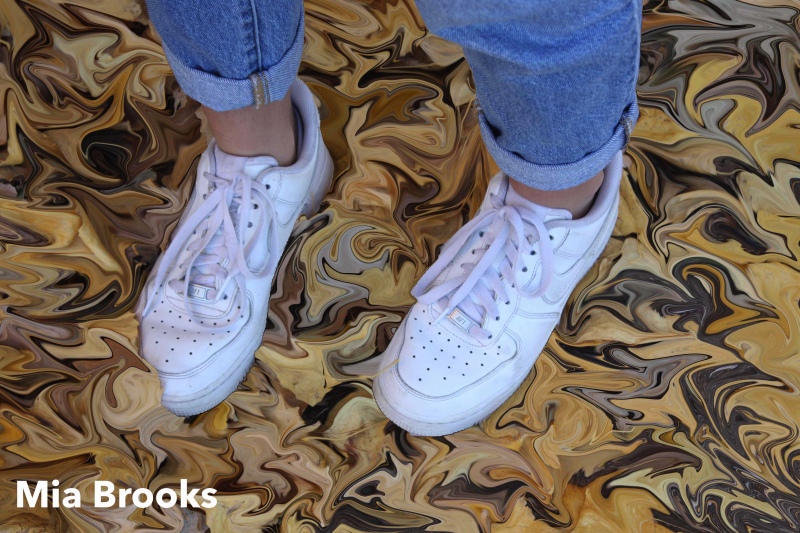
You can use the Liquify Filter alone which would look like this:
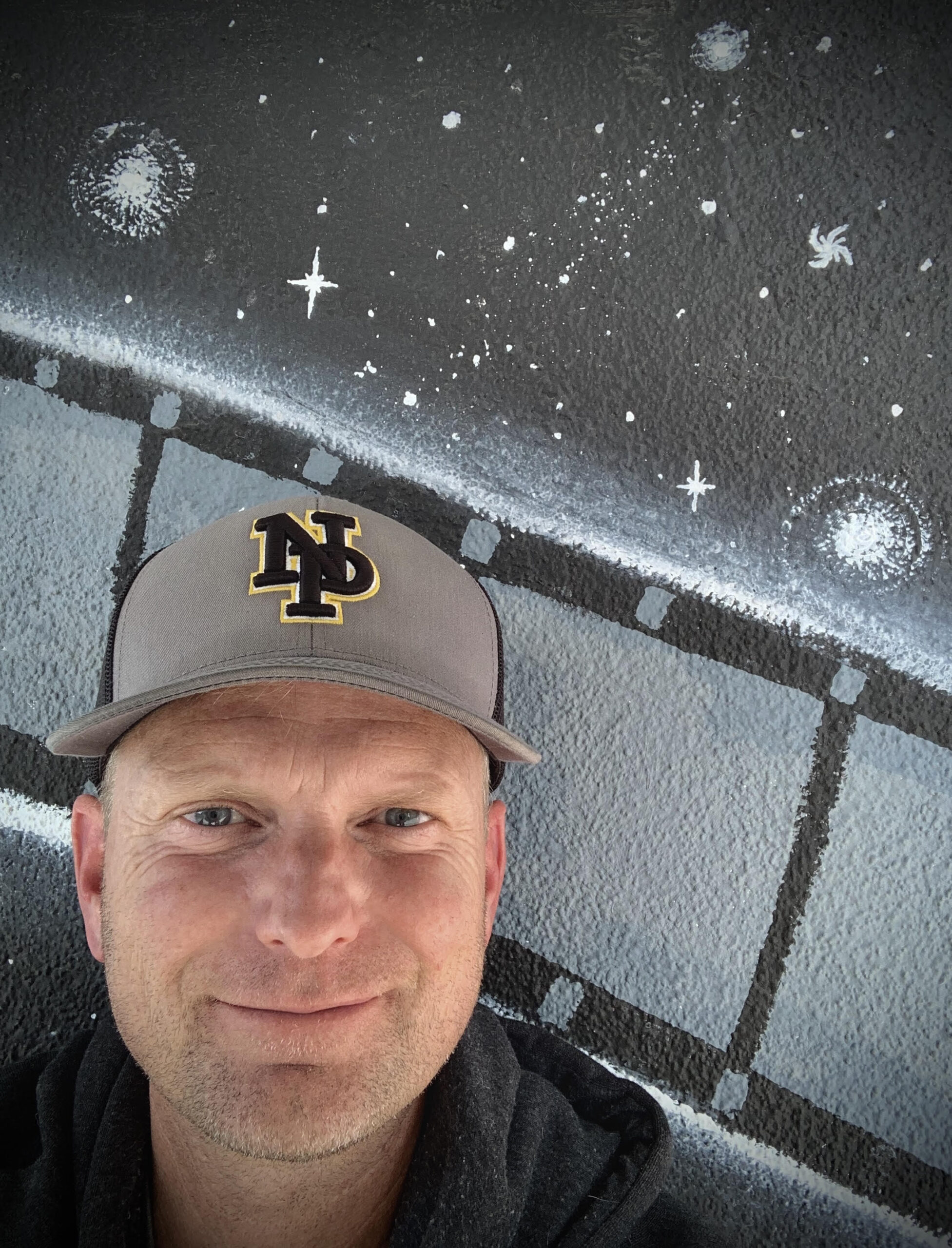
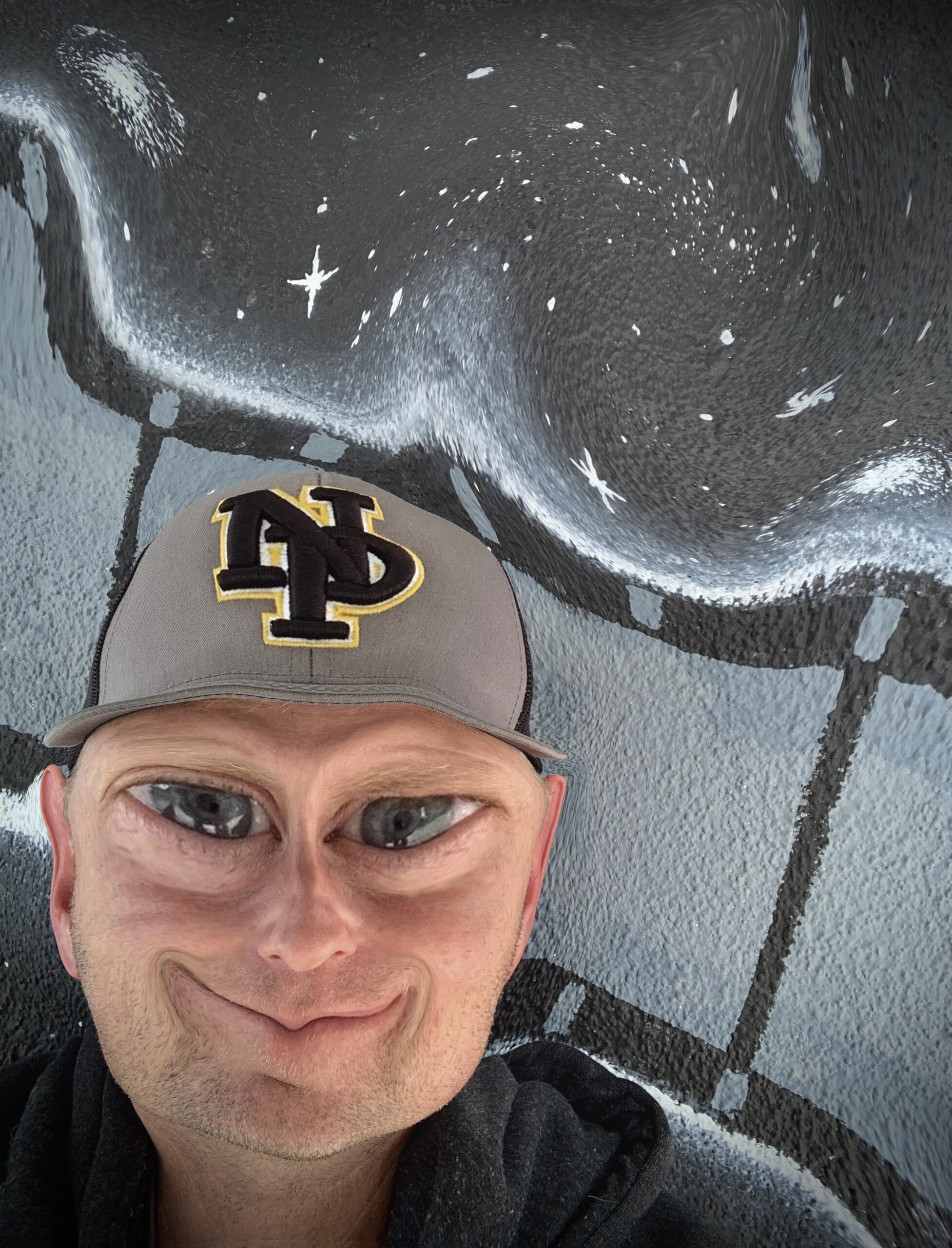
If you go with this option, you must complete four edits.
See sample:
Mr. Lindroth’s Sample Slide Deck – Liquify Filter (no mask use)
Or
You can use the mask to stabilize part of the image and liquify the other parts which would look like this:

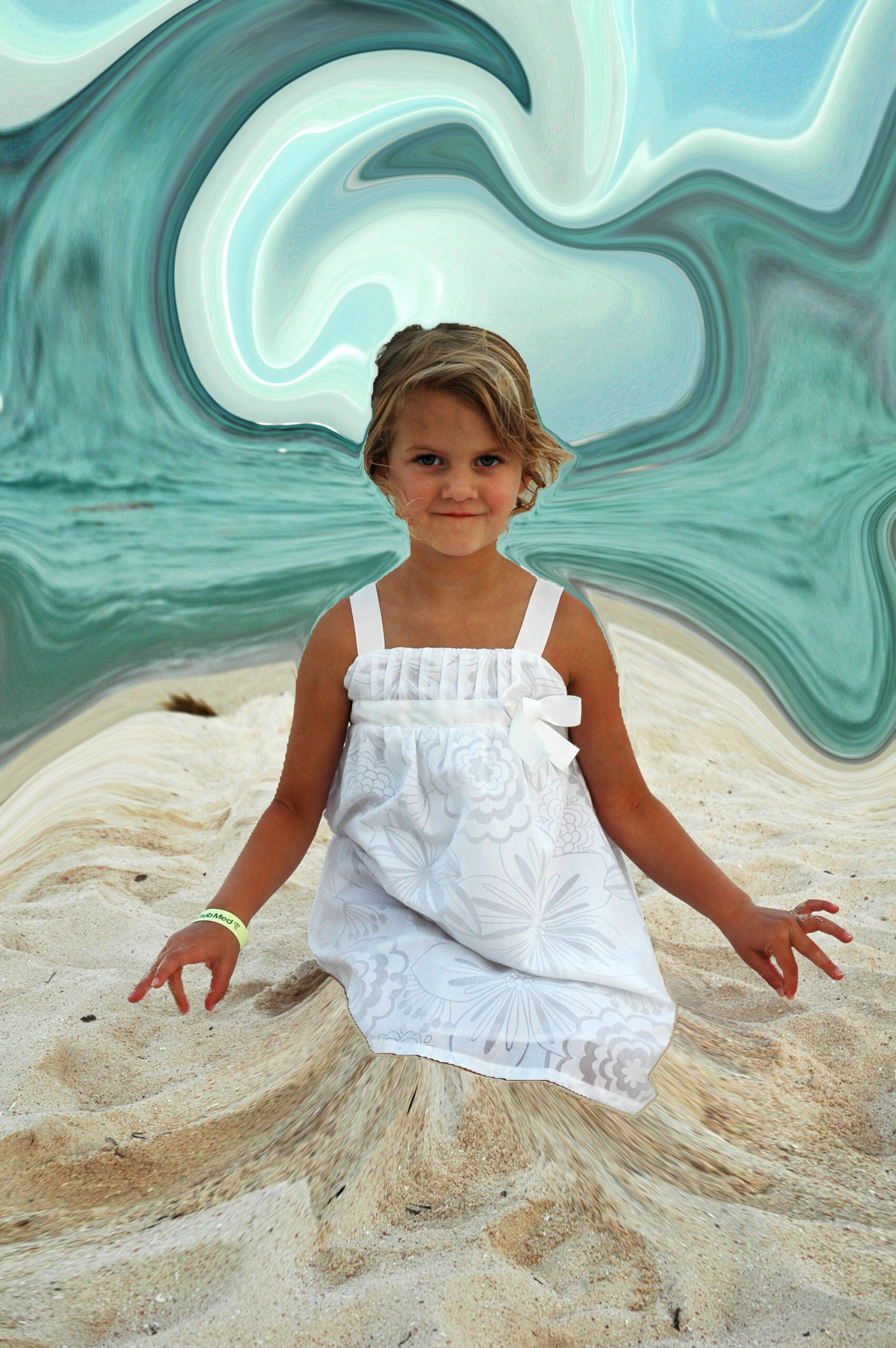
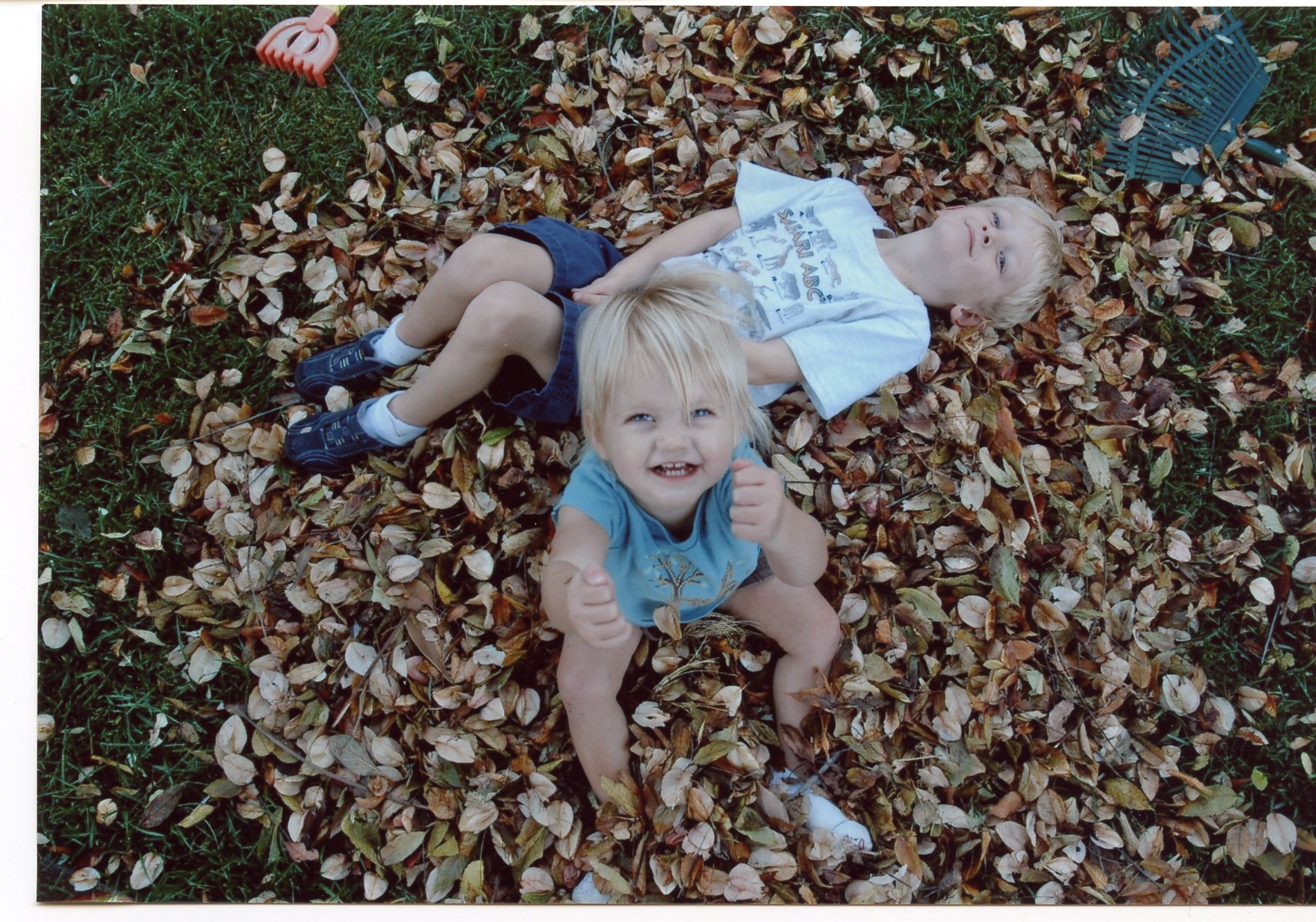
If you go with this option, you must complete two edits.
Mr. Lindroth’s Sample Slide Deck – Liquify Filter with Mask
You can do a combo of these two: two no mask liquify and one with mask
______________________________________________________________________________
Tutorials
Photoshop Video Tutorial for the Liquify Filter
Photoshop Video Tutorial for Liquifying the Background
Photopea Video Tutorial Liquify Filter
Photopea Video Tutorial for Liquifying the Background